
Add Blank Pages graphic Fast, focused workflow
Organize tool

Add Blank Pages

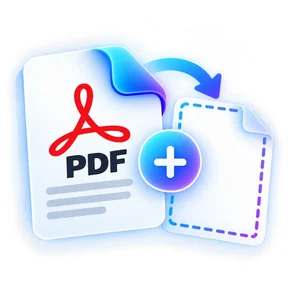
Insert blank pages at the beginning, end or after a selected page.

Processes locally in your browser No account required

Drop your file here

or choose a file from your device

PDF · up to 1 GB per file · processed in this browser tab

How to add blank pages

  1. Add a PDF.
  2. Choose where to insert blank pages, how many, and the page size.
  3. Create and download the updated PDF.

What this tool does

Add separators, note pages or print-friendly blanks while keeping the original content intact.

Frequently asked questions

Can blank pages match the existing PDF size?

Yes. Choose Match nearby page to use the size of the relevant source page.

Can I add more than one blank page?

Yes. You can insert up to 50 blank pages in one operation.

Can I add pages at the start or end?

Yes, or insert them after a specific page.

Quick answer

Add Blank Pages: fast browser-based PDF work

Add Blank Pages lets you insert blank pages at the beginning, end or after a selected page. Open the tool in a modern browser, choose your file, apply the available settings and download the result. No account is required.

Works onlineNo desktop installation required No accountOpen the tool and start immediately Focused controlsSettings are specific to this PDF task
Common uses

When to use Add Blank Pages

  • Clean up scanned or assembled document packs
  • Prepare reports, statements and multi-page files
  • Rebuild page order before sharing or archiving

Processing note: Supported core operations are designed to process the selected file in the active browser session.