How to edit pdf
- Choose a PDF file. ILovePDFMore reads its page content streams in your browser, so the document's real text, images and vector objects become editable.
- Click any line of text and type, the way you would in a word processor, or use the toolbar to add text, images, shapes, drawings, highlights, signatures, comments and links. Pages can be rotated, duplicated, deleted, reordered or imported from another PDF.
- Choose Download PDF. The file is written, re-opened and checked against your edits before it is offered to you.
What this tool does
The editor works on the document itself rather than on a layer above it. Each page's content stream is tokenised and interpreted, so clicking a paragraph selects the text operator that actually drew it, and changing the text rewrites that operator. Replacement text is encoded with the document's own embedded font whenever that font contains the glyphs you type, which is what keeps the original typography; where it cannot, the editor names the substitute rather than changing the look silently. Some content genuinely cannot be edited at source — encrypted files, Type 3 fonts, and text that was converted to outlines — and the editor says which case applies instead of producing something different from what you asked for. Rewritten text replaces the original in the content stream, but this is still not a redaction tool: use a dedicated redaction workflow for sensitive removals.
Frequently asked questions
Can I edit existing text in a PDF?
Yes. Click the line and type — the caret lands where you clicked, and double-clicking selects the whole line to replace it. ILovePDFMore reads the page content stream, so your change is written back into the text operator that drew the original instead of being pasted over it. Where a run cannot be re-encoded with its original font, the editor tells you before you export.
Does edited text keep the original font?
Where the PDF embeds the font and it contains the characters you type, yes — the same embedded font is reused, including subset and CID fonts. If a glyph is missing, the editor says so and uses either a fallback font you load under File, or the closest substitute, and it lists every substitution in the export summary.
Can I add new text, images and signatures?
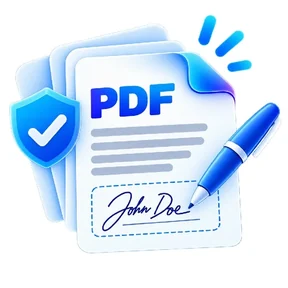
Yes. Add text boxes, JPG or PNG images, rectangles, ellipses, lines, arrows, freehand drawing, highlights, links, sticky notes, and a typed, drawn or uploaded signature.
Can I edit a scanned PDF?
A scan has no text operators to rewrite, so the editor offers OCR. Recognised words become editable boxes that stay labelled as OCR, because editing one covers the scanned pixels and draws new text — a visibly weaker result than rewriting real text, and the editor says so where you use it.
Can I rearrange or rotate PDF pages?
Yes. The page rail supports reordering by drag, rotating, duplicating, deleting and adding blank pages, and you can import selected pages from another PDF.
What happens when I download?
The new PDF is written, then re-opened, re-parsed and checked against the edits you asked for. If a check fails, the dialog says which one and offers no download, so you never receive a file that failed validation.
Are my PDF files uploaded?
No. The document is opened, parsed, edited and written back inside this browser tab. Nothing is sent to an ILovePDFMore server.